
Overview
To-Do Lists lets you build simple checklists for anything you need to keep on top of, from everyday tasks to the practical steps involved in planning and organising. Create as many lists as you like, add items to each, and tick them off as you go.
Each list shows your progress at a glance, and you can share a whole list with a trusted contact so they can follow along or help out. Start from scratch, or begin with a ready-made list and adjust it to suit you.
Tap the + button to start a new list in one of two ways:
Press and hold reveals quick actions, and what you get depends on what you press:
When the toggle is on, every item you have shared is visible to the contacts you chose. When it is off, nothing is shared with anyone, even if individual items still have contacts set.
Your per-item sharing choices are always preserved, so you can switch everything back on at any time without setting it all up again.
To-Do Lists suits anything that is easier to track as a checklist, whether for yourself or shared with someone helping out.
Sharing applies to a whole list, not individual items, so a contact you share with sees every item on that list. Deleting a list removes all of its items and any shared access to it. The library of ready-made lists grows over time, so it is worth checking back for new ones.
To-Do List Sharing Toggle. A master switch for all to-do list sharing. When off, no lists are shared with anyone, even if individual lists have a contact set. Your sharing settings are preserved so you can turn it back on at any time.
List Cards. Each list shows its name and a “done of total” progress count, so you can see at a glance how far through it you are. Tap a card to open the list and work through its items.
Share Icon. A green Angel icon appears on lists that are actively shared with a contact.
Add (+) Button. Create a new list. You can type a name to start an empty list, or choose “Add a list” to begin from a ready-made list or one saved in your Digital Vault.
Create New List. Give the list a name and start with a blank checklist, then add your own items.
Add a list. Begin from a ready-made list provided by Inheritable, or open a list file saved in your Digital Vault. It loads as a new list you can edit like any other, adding, removing, or renaming items.
Add Items. Type a task and add it to the list. Add as many items as you need; there is no limit.
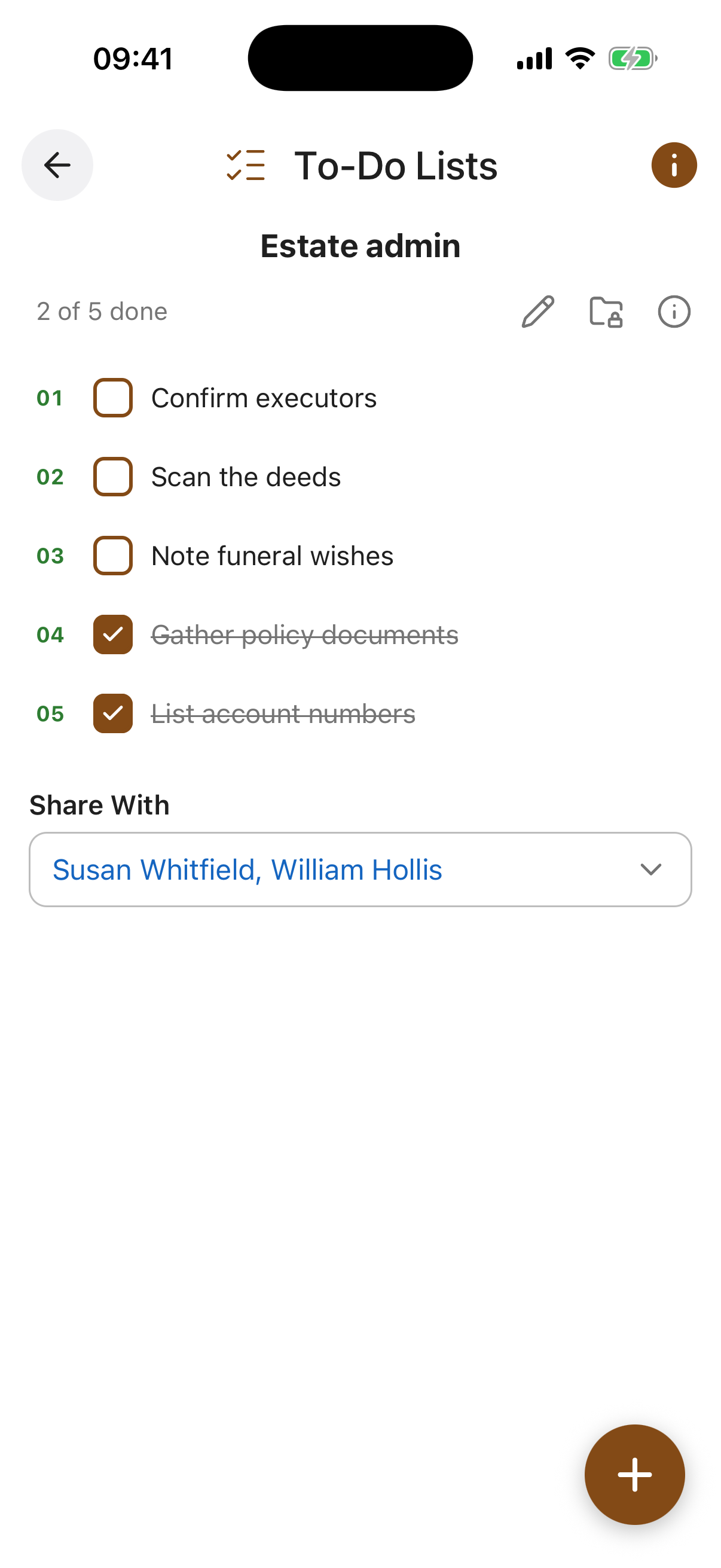
Tick Off Items. Tap an item to mark it done, and tap again to undo. The list’s progress count updates as you go, so you always know what is left.
Share the List. Open a list and set a trusted contact in its Share With field to share the whole list. While the master To-Do List Sharing toggle is on, that contact can follow the list through their Trusted Access view. You can also rename the list or edit and delete individual items at any time.
On a List. Press and hold a list card on the main screen to delete that whole list, along with all of its items.
On an Item. Press and hold an item inside a list to open its actions: move it up or down to reorder the list, edit its text, or delete just that item.