
Overview
The Password Vault is a secure, encrypted space for storing your login credentials and sensitive access details.
We use Military Grade Encryption (AES-256) and row-level security, and for passwords themselves, additional external key security is used, so that no one at Inheritable can read these passwords. Only you and those you authorise can.
Press and hold any entry in the list for instant actions, without opening it:
When the toggle is on, every item you have shared is visible to the contacts you chose. When it is off, nothing is shared with anyone, even if individual items still have contacts set.
Your per-item sharing choices are always preserved, so you can switch everything back on at any time without setting it all up again.
Store all your login credentials in one secure place, so you never have to search through browser saved passwords, emails, or sticky notes to find them.
Inheritable also offers a free browser extension that brings your Password Vault straight to your toolbar. Sign in once with your Inheritable email, Google, or Apple account, then search and copy a login, username, or password into any website without opening the app. Open the popup on a site and it surfaces the entries that match the page you are on, with one-click copy buttons and a built-in strong-password generator for new sign-ups.
It is built to the same security standard as the app, using row-level security and a public key only, with your session kept encrypted and isolated in the browser. The extension is available now for Chrome, Edge, Brave, and Opera from the Chrome Web Store, with Firefox and Safari on the way.
File attachments added to password entries are stored in your Digital Vault and count towards your storage plan, but are only accessible through the password entry itself, not through the Digital Vault feature.
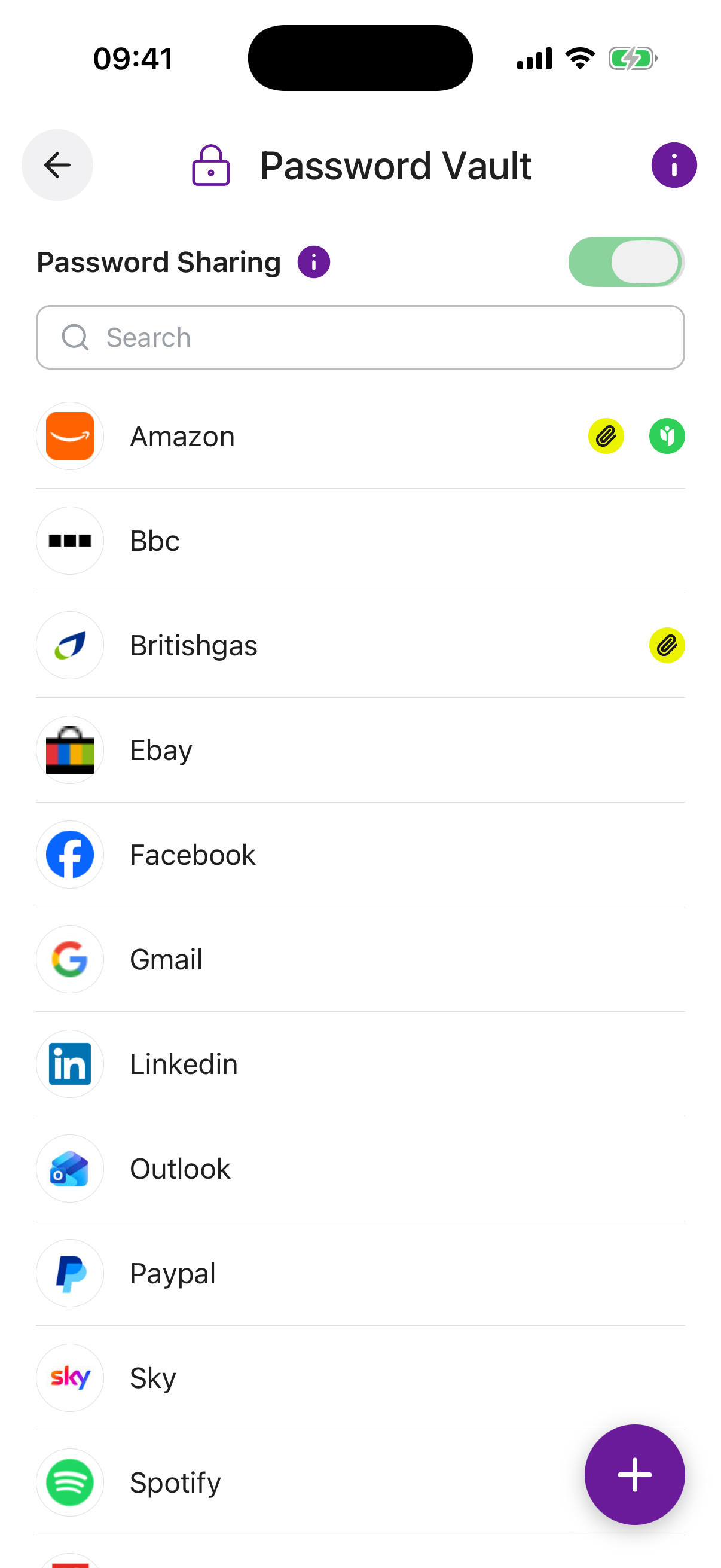
Password Sharing Toggle. A master switch for all password sharing. When off, no passwords are shared with anyone, even if individual entries have a contact set. Your sharing settings are preserved so you can turn it back on at any time.
Password Entries. Each entry shows the service name with a coloured initial. Tap an entry to view or edit its details.
Site Icon. When you enter a website address, the app automatically fetches that site’s favicon (its little logo) and shows it next to the entry, making each login quick to spot at a glance.
Share Icon. A green Angel icon appears on entries that are actively shared with a contact.
Add (+) Button. Opens the form to create a new password entry.
Copy Login ID. Copies the username or email for this entry straight to your clipboard, ready to paste into the login page.
Copy Password. Copies the password to your clipboard without ever displaying it on screen.
Share. Quickly share this entry with one of your trusted contacts inside Inheritable, the same as setting Share With on the entry itself.
Delete. Permanently removes the entry from your vault. This cannot be undone.
Name required. A recognisable label for this entry, for example “Netflix” or “Work Email”.
Login ID. The username or email address used to log in to this service.
URL / Application / Service. The website address or application name this password belongs to.
Password required. Stored with military-grade encryption. The value is hidden by default for your security.
Category. Organise entries into categories such as Banking, Social Media or Work for easier browsing.
Notes. Additional information such as security question answers, PINs, or account recovery details.
Keep Private from Digital Executors. By default, all passwords are handed over to your Digital Executors after your passing and all checks. Tick this box to purge this single entry before the account is handed over, so this password is never made available to them.
Share With. Choose one or more trusted contacts to share this individual entry with. Each selected contact will be able to view the login details.
Reminder. Set an optional reminder for this entry, with its own title, a short note, a date, and how often it should repeat (once, weekly, monthly, and so on). Useful for password renewal prompts. You can switch the reminder on or off at any time.
Attach Document / Photo / Video. Attach a supporting file to this entry, for example a screenshot of the account or a PDF of the terms. You can upload from your device or pull a file straight from your Digital Vault. Attachments count towards your storage plan.